



Updated guide
Why a better Microsoft Teams background helps work calls
Teams is where many internal reviews, client updates, and leadership calls happen. A better background makes the meeting feel prepared without making the room feel staged.
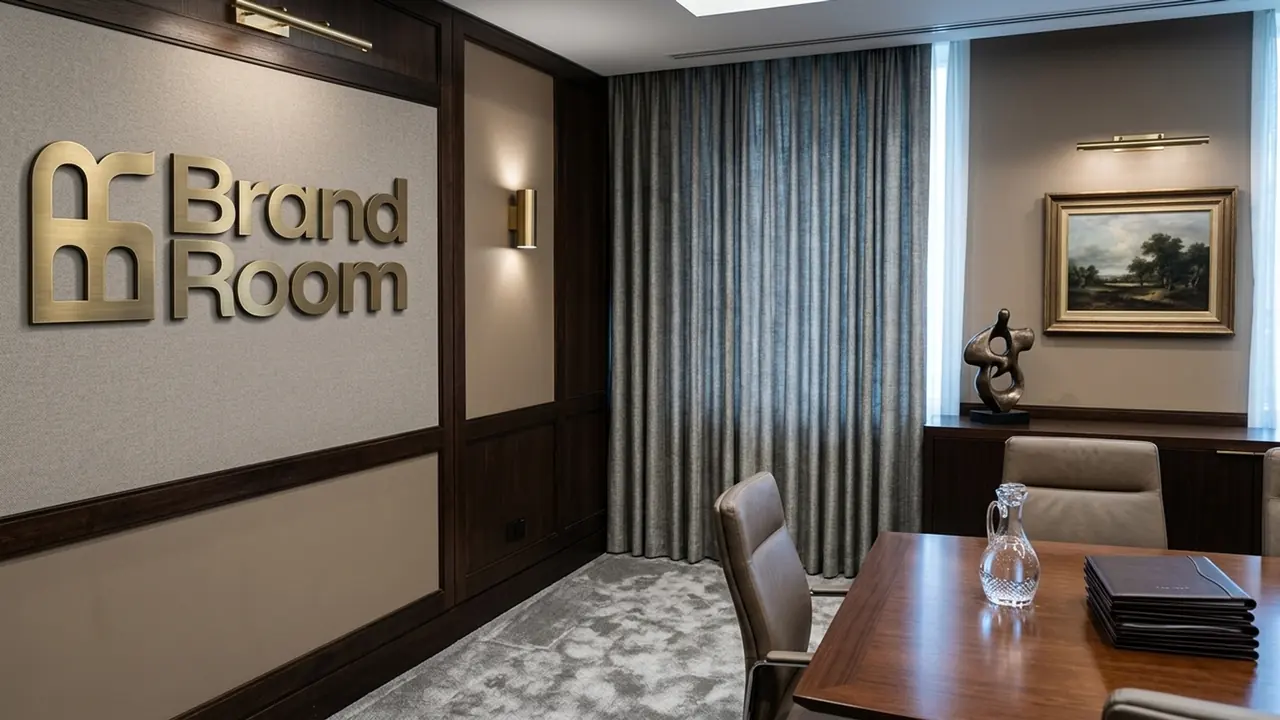
When a better Teams background matters
Use a better Teams background when the call needs to feel more prepared than your real room allows: client reviews, leadership updates, recruiting, workshops, and recurring account meetings. The goal is calm credibility, not decoration.
Where it has the most impact
The reader is not asking where to click yet. They want to know why a Teams background should be improved, when it matters, and what kind of background feels credible in a business meeting.
- Client-facing calls where credibility is evaluated before the first deliverable is shown.
- Leadership meetings where a calm, uncluttered frame helps focus the discussion.
- Recruiting calls where the room should feel professional but not cold.
- Multi-person team calls where inconsistent real rooms make the group feel less aligned.
Presence
Teams backgrounds shape perceived preparedness
On Teams, people often join from offices, homes, and conference rooms in the same meeting. A better background helps your frame feel intentional without needing a perfect physical setup.
Teams background quality signals
A strong Teams background should make the speaker easier to trust, not the room easier to admire.
Click path
- 1Calm room
- 2Soft light
- 3Clear head area
- 4Subtle brand
- 5Privacy protected
- It keeps visual attention on the person speaking.
- It reduces the risk of confidential notes, family space, or room clutter appearing behind you.
- It makes recurring client meetings feel like part of the same professional experience.
- It gives distributed teams a shared standard without requiring matching hardware or offices.
Meeting type
Teams calls often carry more internal context
Because Teams is common for internal and cross-functional work, the background should feel credible for long conversations, not just punchy for a first impression.
- 1
For leadership calls
Use restrained environments: boardroom, clean office, studio, or neutral workspace. Avoid visual jokes or novelty rooms.
- 2
For client reviews
A branded but realistic room can reinforce that the meeting is part of a professional delivery process.
- 3
For workshops
Choose a background with low visual density so screen sharing, whiteboards, and discussion stay easier to follow.
Brand system
Better backgrounds make teams feel more consistent
The biggest value often appears when more than one person uses the same visual system: not identical rooms, but rooms that clearly belong together.
- Create a small set of role-specific rooms instead of one universal backdrop.
- Keep logo position and scale consistent across backgrounds.
- Use similar light temperature so the team feels coherent in gallery view.
- Give people alternatives for formal, casual, and recorded calls.
Teams call-readiness checklist
Use this before uploading a background for a high-stakes Teams call.
Image checklist
- The background does not reveal anything private or confidential.
- The room feels plausible for the meeting type.
- Branding is visible but not louder than the speaker.
- The image has enough empty space around the head and shoulders.
- The background still works in gallery view, not only in a large preview.
Common mistakes
- Using one generic corporate background for every role and meeting type.
- Putting a large logo directly behind the speaker’s head.
- Choosing a room that feels more luxurious than the meeting context.
- Forgetting to test the background in gallery view.
Microsoft Teams background FAQ
Official sources checked
The guide is based on the platform owners’ current support and admin documentation, plus practical image-quality guidance for realistic webcam backgrounds.
Related guides
Microsoft Teams
How to add a custom background in Microsoft Teams
A current, step-by-step Microsoft Teams background guide: upload your own image before or during a meeting, use mobile, understand admin backgrounds, and choose an image that looks realistic.
Zoom
How to add a custom virtual background in Zoom
A practical Zoom virtual background guide covering desktop, in-meeting, mobile, web, admin settings, image quality, troubleshooting, and realistic background tips.
Google Meet
How to add a custom background in Google Meet
A current Google Meet background guide covering custom image uploads before and during meetings, account limits, admin controls, realistic image tips, and FAQs.
Zoom
Why a better Zoom meeting background is worth uploading
A practical guide for founders, consultants, and sales teams on why a better Zoom meeting background improves trust, focus, brand recall, and call readiness.
Google Meet
Why a better Google Meet background makes calls feel cleaner
A guide to why a better Google Meet background can improve focus, reduce visual clutter, protect privacy, and make browser-based meetings feel more professional.