



Updated guide
Why a better Google Meet background makes calls feel cleaner
Google Meet is often fast, browser-based, and low-friction. A better background keeps that speed while making the call look calmer, more private, and more intentional.
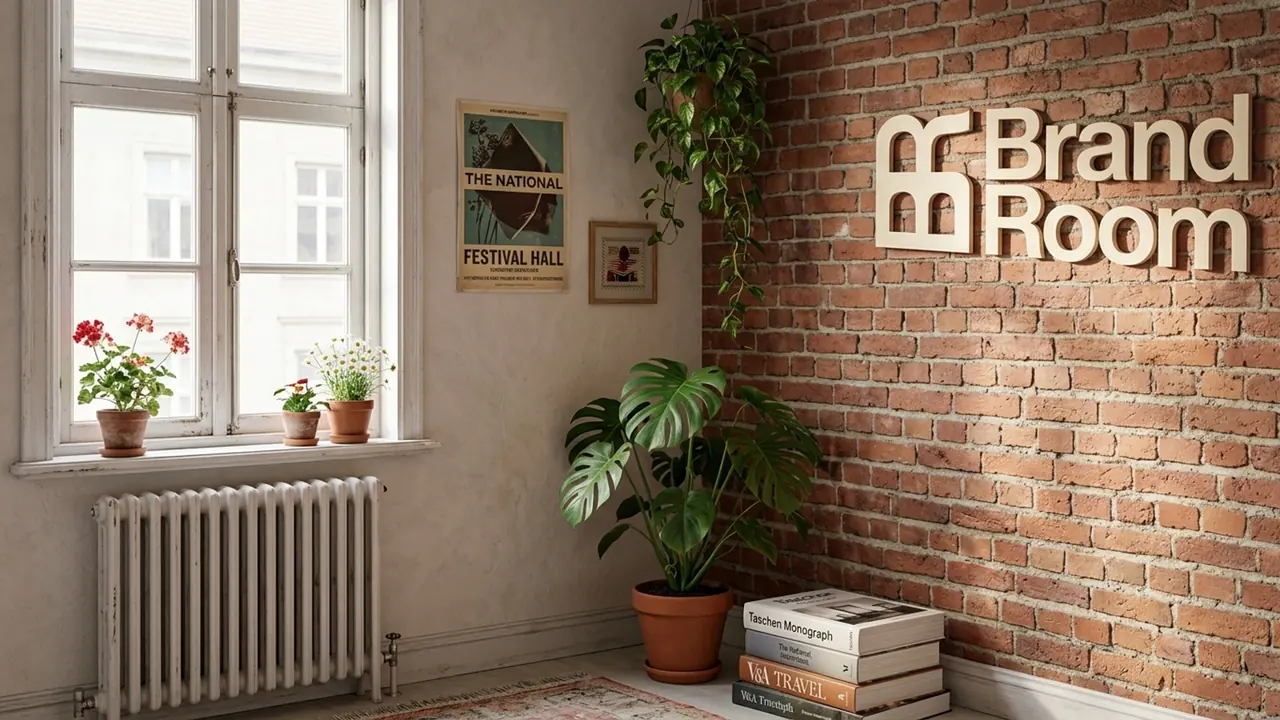
Why upgrade a Google Meet background
Upgrade your Meet background when blur feels too casual, your real room is visually noisy, or you want a cleaner frame for sales, interviews, workshops, and recorded calls. Keep it realistic and centered because Meet may crop video tiles.
Best-fit use cases
The reader wants a reason to move beyond blur, a messy real room, or a generic browser background. They need a focused checklist for making Meet calls look cleaner without overdesigning them.
- Quick external calls where the browser workflow is convenient but the real room is not ideal.
- Recorded Google Meet sessions where the visual frame will be watched again later.
- Workshops where a calm, low-clutter frame helps people stay focused.
- Interviews or client calls where you want more polish than blur provides.
Focus
A cleaner Meet background makes the call easier to watch
Meet calls often happen quickly. A better background lets you keep that speed while removing the distractions that make a browser call feel improvised.
Meet background quality signals
Because Meet may crop participant tiles, strong backgrounds keep the important visual information near the center.
Click path
- 1Centered room
- 2Soft contrast
- 3Low clutter
- 4Subtle logo
- 5Face readable
- It gives the call a cleaner frame without needing a perfect real room.
- It protects privacy better than showing an improvised home setup.
- It avoids the overly casual feeling blur can create in important meetings.
- It gives recorded calls a more durable visual standard.
Browser reality
Google Meet backgrounds need centered, simple composition
Meet can crop video for other participants and performance varies by device. The safest background is simpler than the design file might tempt you to make.
- 1
Center important details
Keep logos, room features, and visual weight away from the extreme edges so the background survives tile cropping.
- 2
Reduce edge complexity
Busy plants, shelves, and high-contrast lines around your shoulders can make the cutout feel unstable.
- 3
Keep effects minimal
A clean custom background plus good front light usually looks more professional than stacking multiple Meet appearance effects.
Decision
Use a custom background when blur is too anonymous
Blur is useful, but it gives every call the same vague context. A better Meet background can create a specific professional environment without revealing your actual room.
- Use blur for casual internal calls and fast privacy.
- Use a custom background for client calls, interviews, recorded sessions, and workshops.
- Use a branded realistic room when you want recognition without visual noise.
- Use a simpler background if your laptop struggles with effects.
Google Meet clean-frame audit
Use this checklist to decide whether your current Meet background is helping or making the call harder to watch.
Image checklist
- The speaker remains the clearest subject in the frame.
- Important background details are centered, not pushed to the edges.
- The room looks realistic at laptop-camera quality.
- The background is calmer than the conversation content.
- The setup still feels good when the Meet tile is small.
Common mistakes
- Putting the logo in a corner that Meet may crop out.
- Using a background with too much detail around the head and shoulders.
- Treating AI or blur effects as a substitute for a clean composition.
- Choosing a room that looks good as an image but distracting in a live tile.
Google Meet background FAQ
Official sources checked
The guide is based on the platform owners’ current support and admin documentation, plus practical image-quality guidance for realistic webcam backgrounds.
Related guides
Microsoft Teams
How to add a custom background in Microsoft Teams
A current, step-by-step Microsoft Teams background guide: upload your own image before or during a meeting, use mobile, understand admin backgrounds, and choose an image that looks realistic.
Zoom
How to add a custom virtual background in Zoom
A practical Zoom virtual background guide covering desktop, in-meeting, mobile, web, admin settings, image quality, troubleshooting, and realistic background tips.
Google Meet
How to add a custom background in Google Meet
A current Google Meet background guide covering custom image uploads before and during meetings, account limits, admin controls, realistic image tips, and FAQs.
Zoom
Why a better Zoom meeting background is worth uploading
A practical guide for founders, consultants, and sales teams on why a better Zoom meeting background improves trust, focus, brand recall, and call readiness.
Microsoft Teams
Why a better Microsoft Teams background helps work calls
A business-focused guide to why a better Microsoft Teams background can improve executive presence, client trust, privacy, and team consistency.